

Backups of backups?!
In an earlier post I wrote about Duplicator and how you can use filters to manage what websites are backed up from your cPanel account. So if you publish multiple websites under a single cPanel account, do check out that post here.
Now this post is about backing up the backups you take using Duplicator or any other plugin for that matter, I always do. The simplest way is to download and save these on your local machine preferably in a cloud-backed folder, e.g. Google Drive or iCloud.
During development, we take tens of these backups, at the start of our day, at key moments during the day, and then once we wrap up. While your backups are ‘technically’ safe wherever you take them, it’s always wise to keep copies of them. However, saving these locally can feel like a chore and get disorganized real fast.
Where and how do you keep backups of backups? I use this simple method:
Create the top-level folder:
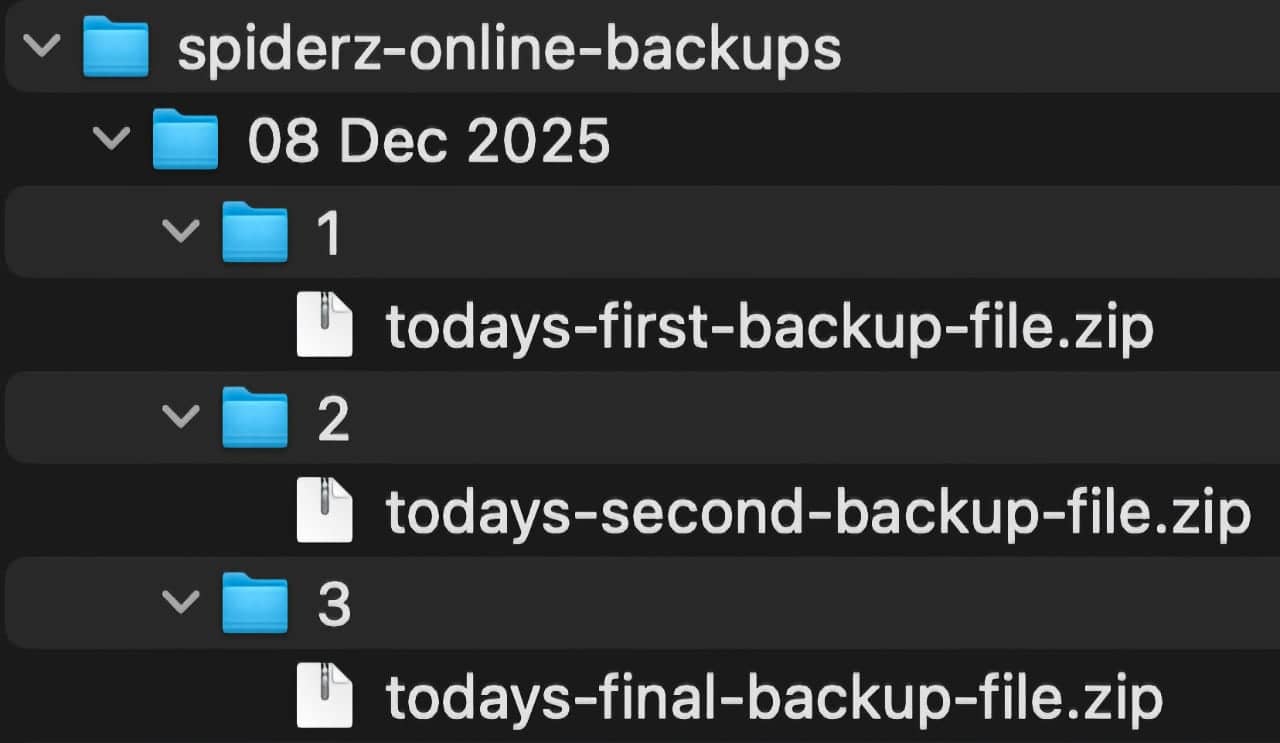
Create a folder called abc-backups on your computer, preferably in a cloud-backed folder like Google Drive or iCloud. You can add the keyword ‘online’ or ‘local’ to the folder name, if like me, you take backups of projects from your local development environment or the online one. And that ‘abc’ part is the name of your project or website. So as an example, if I were taking a backup of spiderz.com, the live site, I’ll name the local backup folder on my computer: spiderz-online-backups
Name folders inside, with the current date:
To know when you took a backup and to be certain, all folders under your main folder will correspond to the date you’re taking the back up, so for today, that’d be 08 Dec 2025. As simple as that.
Follow a numeric folder naming scheme thereafter:
And inside each date folder, simply create a backup folder for each backup, naming them numerically, i.e. 1, 2, 3 and so forth.
The final structure being:
abc-backups
— 08 Dec 2025
—- 1
—— Your backup file resides here
So the idea is to download and keep your backups safely, in a structure that’s easy to remember and replicate.
And then you return tomorrow, simply create another folder for tomorrow’s date and save that day’s backup file in a folder starting with 1.
Essentially, that’s it, and this is quick to work with, there’s not much thinking involved.
Always keep backups of your backups. It’s saved me a lot of hardship more than a couple times.

Yasser Masood
Yasser Masood is a partner at Spiderz. He co-founded Spiderz in 2002 in Dubai, some twenty three years ago. His area of expertise is Brand development and Web technology. You can reach him by writing to yasser@spiderz.com.